 Skiff
SkiffFocus mode, maximize and Mission control
Three views for different moments. Focus mode hides everything but the panes. Maximize fills the window with one pane. Mission control shows the screen of every session at once.
Chapter 5 of 9 · Skiff user guide
Focus mode
- Show a session or a group. Press Ctrl+Shift+E, or click the focus button at the right of the pane header. The item is also in the View menu and in the pane's right-click menu.
- The side panel, the top bar and the status bar go away. The panes of the view fill the window.
- Press Ctrl+Shift+Up or Ctrl+Shift+Down to move the keys to the next or previous pane of the view.
- Press Ctrl+Shift+E again to leave. Going to another view, with Ctrl+Shift+J, the palette or a project key, leaves it too.
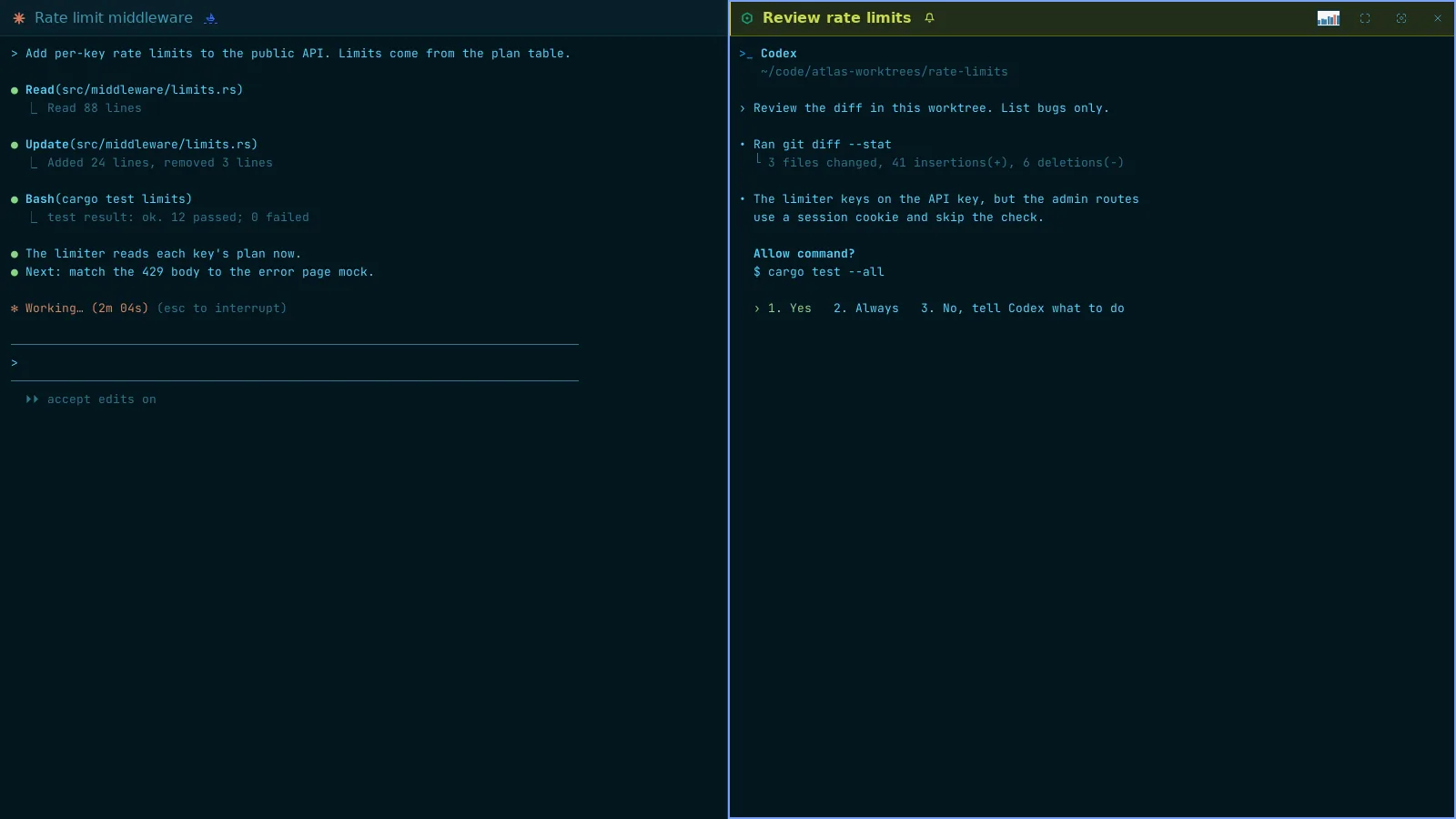
On Admiral's pane, focus mode keeps the Ledger panel. Maximize hides it.
Full screen: maximize a pane
- Focus a pane of a group. Press Ctrl+Shift+Enter, or click the maximize button in the pane header. The item is also in the View menu as Maximize pane.
- That pane alone fills the window, with the same chrome hidden.
- Press Ctrl+Shift+Up or Ctrl+Shift+Down to maximize the next or previous pane of the group in its place.
- Press Ctrl+Shift+Enter again, or click Restore pane, to go back. From focus mode, a maximize goes back to focus mode.
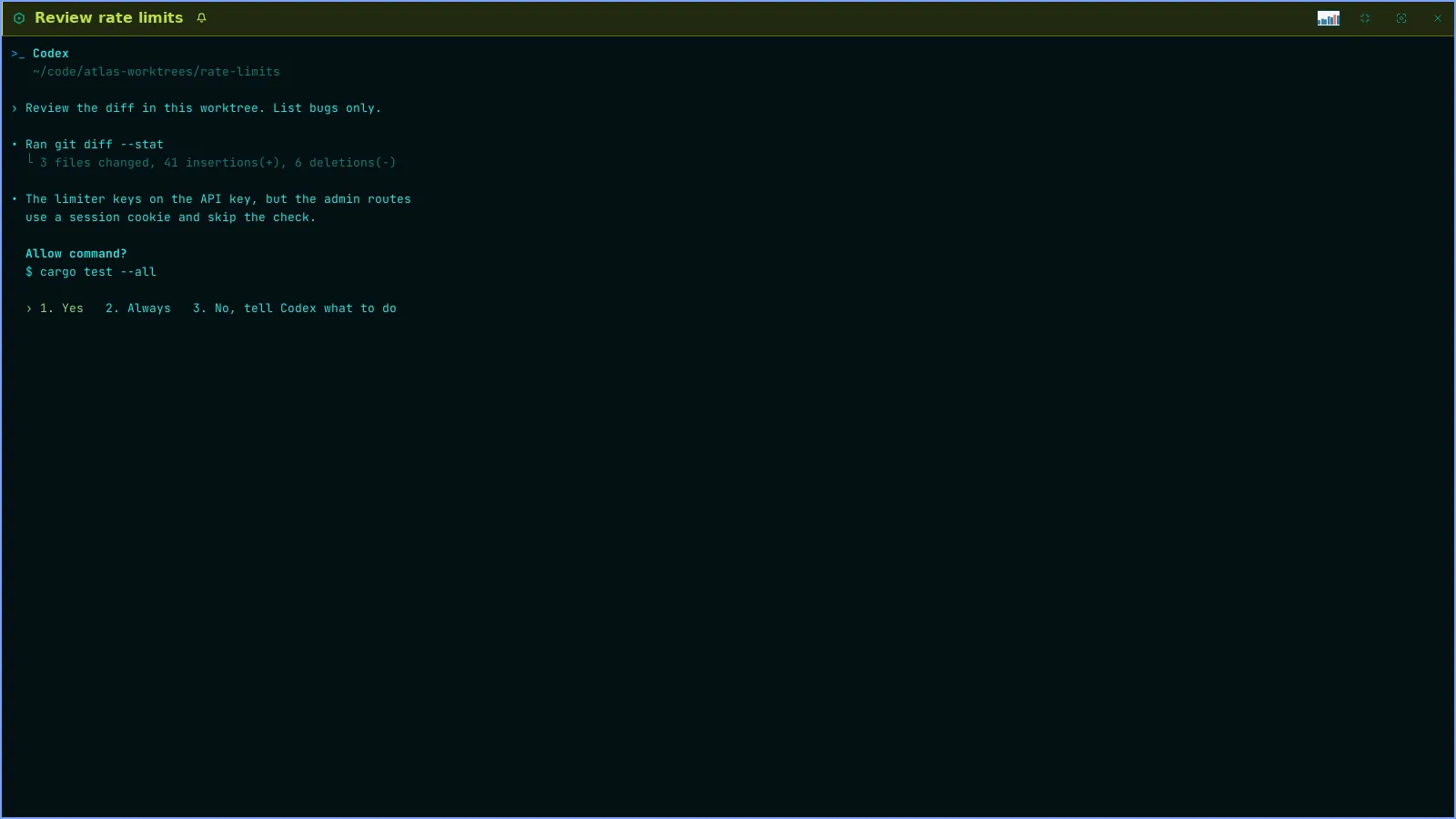
With one pane on screen, focus mode and maximize are the same view. Either key leaves it.
Mission control
Mission control is a board over the whole window with the screen of every session. It shows which agents work, wait or are done, and takes you to one of them. It is read-only: keys do not go to the sessions.
- Press Ctrl+Shift+A, or click View › Mission control.
- The board has one lane per fleet, in the order of the side panel. Projects in no fleet share a lane named Projects. Each screen shows the last lines above the agent's input box, in the session's theme. The screens update every second.
- Click Running or All at the right of the search cell, or press Ctrl+Shift+E. Running shows only the sessions that work or wait. Skiff remembers the choice.
- Press Ctrl+Shift+P to search the board by project, branch, agent, title or state.
- Use the arrows to light a screen: Up and Down in a lane, Left and Right across lanes. Press Enter, or click a screen, to go to that session. Ctrl+Shift+Enter goes to it maximized, and again comes back to the board.
- Press Ctrl+Shift+A or Esc to close. With text in the search, the first Esc clears it.
Mission control is being redesigned. This chapter has no screenshot of it yet. The wiki page lists every key and mouse action.